







Fewer keystrokes, faster messages on your Mac
5 min read
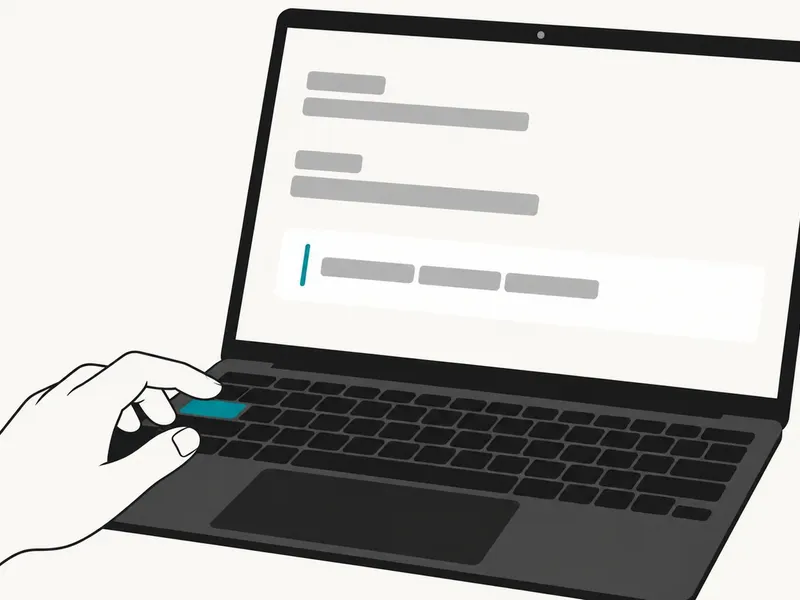
A Typeahead suggestion appears at the cursor; press Tab to accept it, or keep typing to ignore it. Use text replacements for repeated wording in routine replies, keyboard shortcuts for corrections, Dictation for first drafts and Typeahead for sentence endings across your Mac apps. Measure the time to a finished, checked message, including any corrections to names, dates, meeting links and the requested next step.
Start with a real follow-up email that needs a decision, a next step and your meeting link. Write it using your usual method and record the elapsed time through the final check. For messages going to a senior colleague, these ways to write executive emails faster can help you choose what belongs in the draft.
Save the wording you already know
A meeting URL or standard sign-off is a useful candidate for a text replacement because you already know the wording you need. macOS can expand a saved abbreviation into longer text, removing the need to retype or retrieve that passage during a reply.
Open System Settings > Keyboard > Text Replacements > Add. Enter zzmeet as the abbreviation and your meeting URL as its expansion, then add zzsig for your sign-off. Choose abbreviations you would be unlikely to enter as ordinary words in a message.
Test each abbreviation in the field where you work. In supporting apps, check Edit > Substitutions > Text Replacement. Apple’s text replacement guide notes that the feature is not available in every app, so check your document and browser fields separately.
Corrections also take keystrokes. These four editing patterns give you ways to reach a word, select it or remove it while your hands remain on the keyboard. Try them in a draft before using them during a timed comparison:
- Option–Left/Right Arrow moves by word.
- Command–Left/Right Arrow moves to the current line’s start or end.
- Option–Shift–Left/Right Arrow extends the selection to a word boundary.
- Option–Delete deletes the word to the left.
Apple’s shortcut reference notes that behavior can vary by app. Control-L centers the cursor or selection in the visible area in supporting text editors. Its action depends on the app too; check it in the editor where you intend to use it.
Speak the rough draft, then check it
Try Dictation for a first draft you can explain aloud, such as a follow-up describing what was agreed and who needs to act. It enters spoken text at the insertion point. Include the time spent repairing the transcript when you compare it with keyboard entry.
Enable it in System Settings > Keyboard > Dictation. Place the cursor in your message, then use Edit > Start Dictation or your configured shortcut. Say punctuation names and new paragraph as needed, then press Escape to finish and review the wording.
Check names, dates and commitments before sending. Apple’s Dictation guide explains how to correct ambiguous transcriptions. A spoken draft is useful when its drafting time plus correction time compares favorably with your usual method; the exercise below gives you a way to record both.
Dictation has its own processing settings. Read the text beneath Dictation in Keyboard settings to see whether general voice inputs and transcripts are processed on the device and whether an internet connection is required.
For built-in word and phrase completion, try System Settings > Keyboard > Text Input > Edit > Show inline predictive text. macOS predictions appear in many apps, with availability varying by language. Space accepts a prediction and continued typing ignores it, so Space is the key to remember for Apple’s option.
Let the ending meet your cursor
Typeahead completes sentences you have started in every app on your Mac. You supply the beginning and decide whether the proposed ending matches your meaning. That makes an unfinished follow-up sentence a useful place to try it, alongside the fixed wording saved in your replacements.
For an illustrative example, your beginning might be You’ll receive the revised proposal, with a suggested ending of after you confirm the delivery date. Actual suggestions will vary with the writing.
Tab saves time when the suggestion finishes your thought before your fingers do. A useful ending needs to match the sentence you intended to write; accepting it should leave you with less wording to enter.
Use this short check to see acceptance and dismissal in Mail. Start after the local model has downloaded and your license is activated. Readers ready for installation can follow the Typeahead setup walkthrough before trying these steps:
- Open a new message in Mail.
- Start a sentence in the message field and watch for a suggestion at the cursor.
- Press Tab to accept it.
- Start another sentence, then continue typing when a suggestion appears to see it ignored.
You can use the same sentence-completion workflow in Pages or a Salesforce note field.
Make a comparison worksheet with columns for task, app, method, drafting time, correction time and total time. Add a note about the corrections you made, such as a misheard name or a changed deadline. This is a personal exercise, so use comparable tasks with similar length and complexity.
Time two comparable work messages. Write one with your usual method, then write the other using a saved text replacement, Dictation for the rough wording, shortcuts for corrections and Tab for useful Typeahead suggestions. Record each method in its own worksheet row.
Stop each timer only after you’ve verified the recipient, facts and requested action. Compare total duration and the fixes you had to make. Use those results to choose which tools to carry into your next work draft.